Everyware for WooCommerce - Refunds
Overview
The Everyware for WooCommerce (embedded link to product page) payment plugin allows merchants from every vertical to accept credit and debit card payments payments from the top card brands with PCI and SOC II security assurance.
Requirements
To use this extension, you need an Everyware account with payment processing enabled. To sign up for an Everyware account follow these steps:
- Text "Woo" to (561) 404-1462 and speak to an Everyware representative about signing up.
- Apply for a new Merchant Account or add your existing gateway credentials to your Everyware account.
Installation
Download the Everyware for WooCommerce .zip file.
In Everyware
- Settings
- API Settings
- Copy your Everyware username and key
In Wordpress Admin
- Plugins > Add New > Upload
- Upload the Everyware for WooCommerce Plugin file
- Install Now and Activate the plugin
Setup & Configuration
- WooCommerce > Settings > Payments
- Locate the Everyware - Pay with Card Plugin
- Click Manage
- Set to Enable
- Paste in your Everyware username and key
- Save changes
- Test in Test Mode
- Remove Test Mode - Live!
Testing Guidelines
Wordpress Admins may check the "Test Mode" option inside the Everyware for WooCommerce plugin settings at to test a payment without having to worry about changing API credentials anywhere else and without customers seeing the Everyware payment option. This is an incognito method for verifying successful transactions through the Everyware gateway connection.
It is recommended to keep test transactions below $15.00 and refund all test transactions
Uncheck Test Mode once your tests are successful and your customers will see the Everyware gateway option in their checkout page.
Test Credit Cards
To test an Everyware card payment use one of the test card numbers below.
VISA Test CC number
4111111111111111. Use any CVV2 number and an expiration date in the future.
Mastercard Test CC number
5496198584584769. Use any CVV2 number and an expiration date in the future.
⚠️ It is not possible to test refunds with the test card numbers provided as they are intended to simulate the initial payment experience only.
Workflow
User experience screenshots from installation to customer checkout.
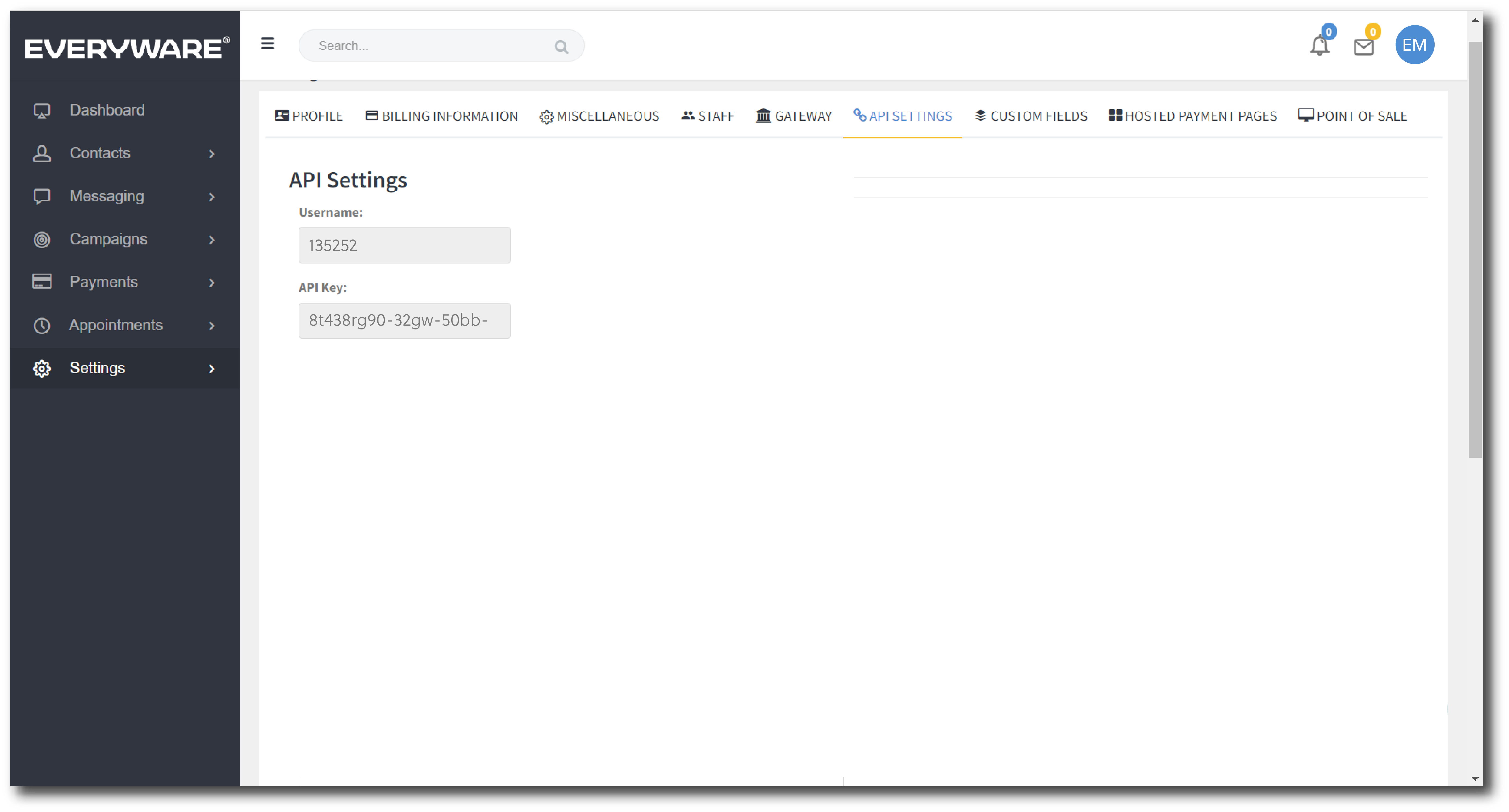
Copy Credentials from Everyware > API Settings
Troubleshooting
Issues you may run across and possible ways to solve them.
| Problem | Troubleshoot |
|---|---|
| If your checkout page shows customers the error message, "It looks like your API credentials are not matching anything in our system. Please review them and try again, or contact customer service at [support@everyware.com.](mailto:support@everyware.com.)" | Go to WooCommerce > Settings > Everyware for WooCommerce > Manage : and check to make sure there are no typos in your plugin settings. Make sure your API Name and Key match your credentials in the Everyware portal Settings>API Settings tab. |
Questions & Feedback
Commonly asked questions about the Everyware for WooCommerce payment gateway plugin V1.0.3.
Where can I see my plugin file code?
If you don't have the Plugin File Editor tool in Wordpress, you might try the Download Plugin- Plugin from WP Factory
QUESTION
Answer
Help, Questions & Feedback
Have a question before you sign up?
Already purchased and need some assistance? Get in touch with us via the Help Desk.