All documentation

Update Terminal

Update Terminal

A terminal’s name and status can be edited using this PUT method, which mimics the Everyware Portal POS Settings table ‘Edit Terminal’ action.

Sandbox Put URL: https://restsandbox.everyware.com/api/terminals
Live Put URL: https://rest.everyware.com/api/terminals

Update Terminal Parameters

Parameter Description Required or Optional
SalesSiteId The unique identifier in Everyware for the business. REQUIRED
TerminalName The nickname you can assign to a terminal once it's been synced. Appears in Everyware portal Point of Sale Settings table in the ‘Name’ column.\ Ex: "New Nickname" OPTIONAL
IsActive Change the active status of a terminal by sending a True or False IsActive parameter.
    True: Terminal is synced and available for transactions. Appears with Status "Active" in portal settings.

    False: Terminal is synced but status changes to "Inactive" and is not available for transactions.
  </td><td>
    OPTIONAL
  </td></tr></tbody></table>

Update Terminal Sample Code

{
    "EverywareTerminalId": "7",
    "TerminalName": "New Nickname",
    "IsActive": false
}
{
    "Data": {
        "SalesSiteId": 122700,
        "EverywareTerminalId": 7,
        "ProviderTerminalId": "11ecca669ab8bc94bf63eb36",
        "ProviderLocationId": "11eca926e0b93ed2915f8b20",
        "TerminalModel": "Ingenico Lane 3000 6987",
        "TerminalName": "New Nickname",
        "IsActive": false,
        "CreatedAt": "2022-05-31T20:11:17.55",
        "UpdatedAt": "2022-10-19T19:56:58.5249427Z"
    },
    "IsSuccessful": true,
    "Message": null
}

Update Terminal Portal UI

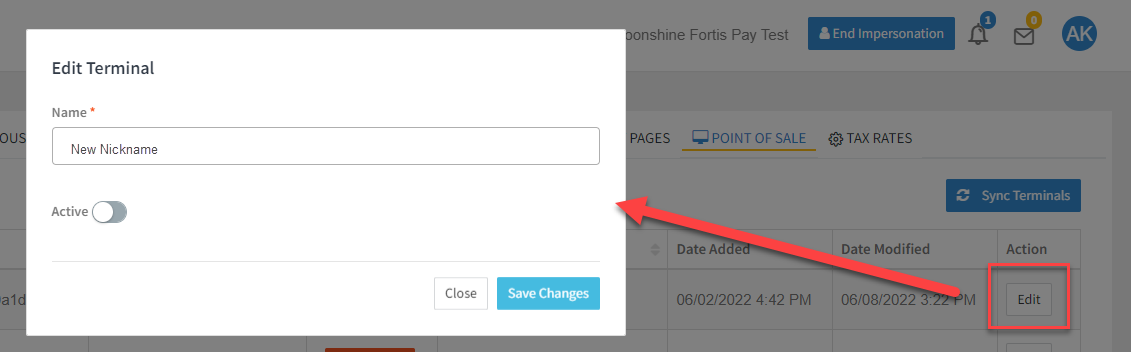
Update Terminal - Edit Terminal UI Screenshot.png

Point of Sale Settings Edit Terminal Pop Up

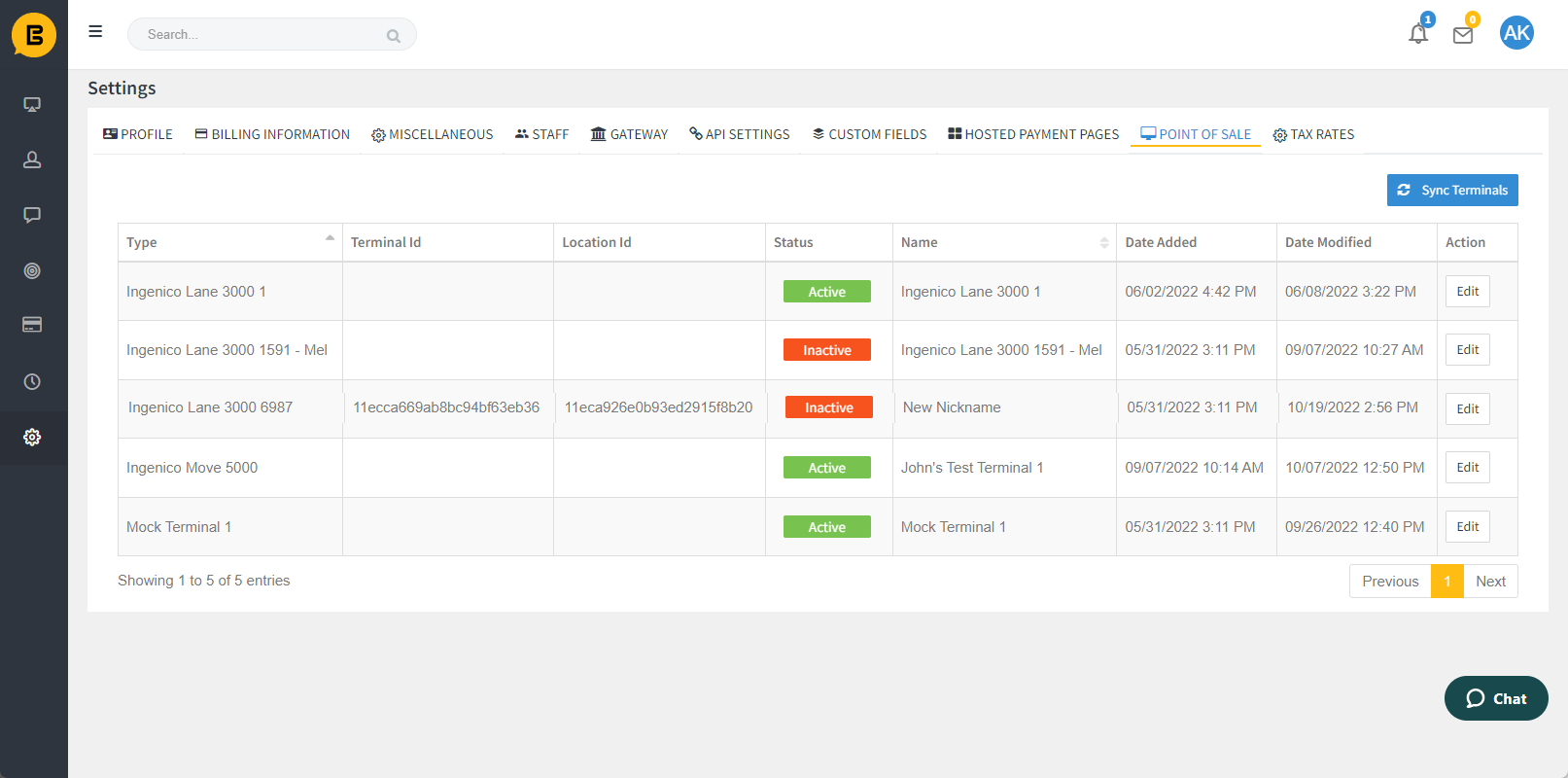
POS Tab All Terminals - Update Status and Name.png

Point of Sales Settings Table Result after Updated Terminal (Name and Status)

All Swipe Terminal Integration Guides

🚧 Notice

If your sales site is not enabled for CP Terminal functionality you will encounter an error response, "Card Present Terminal functionality has not be enabled for this sales site" Contact support@everyware.com if you encounter this error.